Category: AWS DevOps

  • PUSH docker image to Jfrog artifactory

    • For private and secure storage our organization prefer to store docker images in Jfrog artifactory.
    • The image can be scanned for vulnerabilities before deployment.
    • It can be stored with the multiple versions of the same image with different tags.
    • Artifactory can cache public images from Docker Hub, reducing external dependencies and download times.

    To push a docker image to Jfrog Artifactory, we need to login to Artifactory Docker Registry.

    <docker login <artifactory-url>

    pull docker image from Docker hub

    <docker pull <image name>

    Tag the image

    <docker tag local-image artifactory-url/repo/image-name>

    push the image

    <docker push artifactory-url/repo/image-name>

  • UPDATE KERNEL FOR SECURITY PATCH UPDATES

    • To update kernel first we need to list all installed kernel versions and check the currently running kernel.

                  << rpm -qa kernel | sort >>

    • The above command gives all the installed kernel versions and we need to install the latest kernel.

                   << uname -r >>

    • The above command shows the currently running kernel

          << sudo dnf updateinfo list security >>

    • The above command lists all packages with security fixes and vulnerabilities

                      <<  dnf versionlock clear >>

    • The above command Removes all locked packages so DNF is free to update kernel or any other updates.

                             << sudo dnf install kernel-3.10.0-957 >>

    • The above cmd installs the latest kernel. Now it needs a reboot to apply the changes and then we verify if the kernel is updated with the newer version with <uname -r>.
    • And we verify if all the vulnerabilities got clear using

    < sudo dnf updatinfo list security>

    • Now we update everything with < sudo dnf update -y >
    • Finally, we add the version lock back to the latest kernel using

    <sudo dnf versionlock add kernel-3.10.0-957 >

  • SECRETS ARE NOT ROTATING IN SECRETS MANAGER

    • we had an issue where Security hub is reporting that the secrets in AWS Secrets Manager weren’t rotating automatically. Our database credentials were failing to update on their scheduled 30-day rotation cycle.
    • I was responsible for identifying the root cause and restoring the automated rotation process to maintain our security compliance.
    • I followed a systematic troubleshooting approach:
    • First, I checked the Secrets Manager console and saw that the rotation status showed as failed
    • I identified the Lambda function handling the rotation and went directly to CloudWatch Logs to check the execution logs
    • In the logs, I found an authentication error that the credentials stored in Secrets Manager no longer matched the actual database credentials
    • I investigated further and discovered that a developer had manually changed the database password directly in the database without updating it in Secrets Manager
    • This caused a disconnect – Secrets Manager was trying to rotate using old credentials that were no longer valid
    • To resolve this, I Coordinated with the developer to understand what changes were made
    • Updated the secret in Secrets Manager with the current valid credentials
    • Re-triggered the rotation manually to verify it worked
    • The rotation succeeded, and I confirmed the new credentials were properly stored and functional.

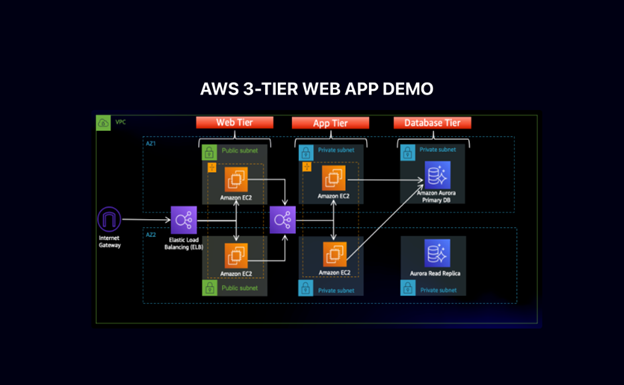
  • AWS THREE TIER WEB ARCHITECTURE

    1. Downloaded code from GIT hub using git clone
    2. To upload the code I have created a bucket in S3
    3. Then I have created an IAM role with permissions like AmazonSSMManagedInstanceCore and AmazonS3ReadOnlyAccess

    These policies will allow our instances to download code from S3 and use systems manager Session Manager to securely connect to our instances without SSH keys through the AWS console.

    NETWORKING and SECURITY

    • I have created a VPC with the CIDR range (10.0.0.0/16) and created 6 subnets where 3 subnets will be in one Availability zone and 3 will be in another one.

    Public-Web-Subnet-AZ-1, Private-App-Subnet-AZ-1, Private-DB-Subnet-AZ-1.

    • Created Internet gateway for the public subnets in VPC and attach it to the VPC.
    • Created NAT gateways for the instances in the app layer private subnet to be able to access the internet they will need to go through the NAT gate way. For high availability, I have deployed one NAT gateway in each of my public subnets.
    • Created two route tables for public and private subnets and then edited the Routes by adding destination and targets that directs traffic from the VPC to the internet gateway for public subnet and NAT gateway for private subnet.
    • Created security groups to tighten the rules around which traffic will be allowed to our Elastic load balancers and EC2 instances.

    Internet-facing-lb-sg, web-tier-sg, internal-lb-sg, private-instance-sg, DB-sg.

    DATABASE DEPLOYMENT

    • Created a DB subnet group in RDS by adding the subnets that I have created in each AZ specifically for DB layer.
    • Provided all the configuration which will be needed to create a DB and I would get a reader and writer instance in the database subnets of each availability zone.

     App Tier Instance Deployment

    1. App instance deployment: Created an EC2 instance for the app layer and make all necessary software configurations so that the app can run. The app layer consists of a Node.js application that will run on port 4000. I have configured the database with some data and tables.
    2. Connect to instance: Then connected to the App layer instance using Session Manager using sudo -su ec2-user

    Configure database:

    1. Configure database: Installed MySql CLI and then initiated DB connection with the RDS writer instance end point.
    2. Created Db and Table and inserted some sample data.
    3. Configure app instance: upload the app-tier folder to the S3 bucket and in SSM we need to install all of the necessary components to run the backend application. And install pm2 as well to keep our node.js app running when we exit the instance or if it is rebooted.

    Internal load Balancing and Auto Scaling

    1. Created an Amazon machine image (AMI) of the app tier instance that I have created, and use that to set up autoscaling with a load balancer in order to make this tier highly available.
    2. Created target group to use with the load balance.
    3. Created an application load balancer with internal as this one will not be public facing, but rather it will route traffic from web tier to the app tier.
    4. Selected the sg that I have created for this internal ALB, now this ALB is listening for HTTP traffic on port 80. It will be forwarding the traffic to the target group that I have created earlier.
    • Before configuring Auto scaling, need to create launch template with the AMI that I have created earlier.
    • Created auto scaling group with the launch template that I have created for two private app instances in two AZs (private-app-subnet-AZ1, private-app-subnet-AZ2) and then attach it to appTierTargetGroup – ALB

    WEB TIER INSTANCE DEPLOYMENT

    • Update the config file: Before we create and configure the web instances, open up the application-code/nginx.conf file from the repo we downloaded.
    • Replace [INTERNAL-LOADBALANCER-DNS] with your internal load balancer’s DNS entry. You can find this by navigating to your internal load balancer’s details page.

    Web instance Deployment

    • Launch an ec2 instance as WebLayer in public web subnet az1
    • Connect to the instance in ssm using sudo -su ec2-user
    • Configure web instance by running all the necessary components needed to run the front-end application.
  • Transformed TXT file to CSV using AWS Lambda function

    • To process this I have used AWS Lambda with a custom Panda layer to Transform Text files stored in S3 buckets (input).
    • When a text file is uploaded to an input bucket, it triggers the Lambda function, which processes the file and outputs a CSV to a different bucket (output bucket).

    # Created a Dockerfile to build the layer in the right environment

    • As lambda functions have limited built in libraries, so we need to create a custom layer containing pandas.

    vi Dockerfile

    FROM public.ecr.aws/lambda/python:3.12

    RUN pip install pandas -t /opt/python/

    RUN cd /opt && zip -r pandas-layer.zip python/

    # Build and extract the layer

    docker build -t pandas-layer-builder .

    docker run –rm -v $(pwd):/output pandas-layer-builder cp /opt/pandas-layer.zip /output/

    # Uploaded the layer

    aws lambda publish-layer-version \

      –layer-name pandas-layer \

      –description “Pandas library for Lambda” \

      –zip-file fileb://pandas-layer.zip \

      –compatible-runtimes python3.12

    ## Step 2: Creating Lambda Function Code

    # To create function directory
    mkdir lambda-function
    cd lambda-function

    ### 2.2 Created the Lambda Function

    # lambda_function.py
    import json
    import boto3
    import pandas as pd
    from io import StringIO
    import urllib.parse
    import logging

    # Configure logging
    logger = logging.getLogger()
    logger.setLevel(logging.INFO)

    def lambda_handler(event, context):
       
        Lambda function to process files from S3 triggered by S3 events
       
        s3_client = boto3.client(‘s3’)

        try:
            # Process each record in the event
            for record in event[‘Records’]:
                # Get bucket and object key from S3 event
                bucket = record[‘s3’][‘bucket’][‘name’]
                key = urllib.parse.unquote_plus(record[‘s3’][‘object’][‘key’])

    logger.info(f”Processing file: s3://{bucket}/{key}”)

                # Only process .txt files
                if not key.lower().endswith(‘.txt’):
    logger.info(f”Skipping non-txt file: {key}”)
                    continue

                # Read file from S3
                try:
                    response = s3_client.get_object(Bucket=bucket, Key=key)
                    file_content = response[‘Body’].read().decode(‘utf-8’)
                except Exception as e:
                    logger.error(f”Error reading file {key}: {str(e)}”)
                    continue

                # Parse the file content
                env_dict, services_set = parse_file_content(file_content)

                if not env_dict:
                    logger.warning(f”No environments found in {key}”)
                    continue

                # Create DataFrame
                df = pd.DataFrame.from_dict(env_dict)

                # Generate output filename
                from datetime import datetime
                timestamp = datetime.now().strftime(‘%Y%m%d_%H%M%S’)
                base_name = key.replace(‘.txt’, ”).split(‘/’)[-1]
                output_bucket = bucket.replace(‘-input-‘, ‘-output-‘)  # Assuming naming convention
                output_key = f”processed/{base_name}_output_{timestamp}.csv”

                # Convert to CSV and upload
                csv_buffer = StringIO()
                df.to_csv(csv_buffer, index=True)
                csv_content = csv_buffer.getvalue()

                s3_client.put_object(
                    Bucket=output_bucket,
                    Key=output_key,
                    Body=csv_content,
                    ContentType=’text/csv’,
                    Metadata={
                        ‘source-file’: key,
                        ‘source-bucket’: bucket,
                        ‘environments-count’: str(len(env_dict)),
                        ‘services-count’: str(len(services_set)),
                        ‘processed-timestamp’: timestamp
                    }
                )

    logger.info(f”Successfully processed {key} -> s3://{output_bucket}/{output_key}”)

            return {
                ‘statusCode’: 200,
                ‘body’: json.dumps({
                    ‘message’: ‘Files processed successfully’,
                    ‘processed_files’: len(event[‘Records’])
                })
            }

        except Exception as e:
            logger.error(f”Error processing files: {str(e)}”)
            return {
                ‘statusCode’: 500,
                ‘body’: json.dumps({
                    ‘error’: str(e)
                })
            }

    def parse_file_content(file_content):
        “””Parse the configuration file content”””
        env_dict = {}
        services_set = set()
        current_env = None

        for line in file_content.split(‘\n’):
            line = line.strip()
            if not line:
                continue

            # Find environment lines (marked with *)
            if line.startswith(‘*’) or ‘*’ in line:
                current_env = line.replace(‘*’, ”).strip()
                env_dict[current_env] = {}
    logger.info(f”Processing environment: {current_env}”)
            elif current_env and ‘:’ in line:
                # Parse service:version pairs
                parts = line.split(‘:’, 1)
                if len(parts) == 2:
                    service = parts[0].strip()
                    version = parts[1].strip()
                    env_dict[current_env][service] = version
                    services_set.add(service)

        return env_dict, services_set


    ### 2.3 Create Function ZIP
    zip -r function.zip lambda_function.py

    # Check size
    ls -lh function.zip

    ## Step 3: Created S3 Buckets (Input and output)

    # Set variables
    ACCOUNT_ID=$(aws sts get-caller-identity –query Account –output text)
    REGION=”us-east-1″  # Change as needed
    STACK_NAME=”file-parser”

    INPUT_BUCKET=”${STACK_NAME}-input-${ACCOUNT_ID}”
    OUTPUT_BUCKET=”${STACK_NAME}-output-${ACCOUNT_ID}”

    # Created buckets
    aws s3 mb s3://${INPUT_BUCKET} –region ${REGION}
    aws s3 mb s3://${OUTPUT_BUCKET} –region ${REGION}

    echo “Created buckets:”
    echo “Input: ${INPUT_BUCKET}”
    echo “Output: ${OUTPUT_BUCKET}”

    ## Step 4: Create IAM Role for Lambda

    # Create trust policy file
    vi trust-policy.json
    {
      “Version”: “2012-10-17”,
      “Statement”: [
        {
          “Effect”: “Allow”,
          “Principal”: {
            “Service”: “lambda.amazonaws.com
          },
          “Action”: “sts:AssumeRole”
        }
      ]
    }

    ### 4.2 Create IAM Role

    # Create the role
    aws iam create-role \
      –role-name lambda-file-parser-role \
      –assume-role-policy-document file://trust-policy.json

    # Attach basic Lambda execution policy
    aws iam attach-role-policy \
      –role-name lambda-file-parser-role \
      –policy-arn arn:aws:iam::aws:policy/service-role/AWSLambdaBasicExecutionRole

    ### 4.3 Create Custom S3 Policy

    # Create S3 policy
    vi s3-policy.json
    {
      “Version”: “2012-10-17”,
      “Statement”: [
        {
          “Effect”: “Allow”,
          “Action”: [
            “s3:GetObject”
          ],
          “Resource”: “arn:aws:s3:::${INPUT_BUCKET}/*”
        },
        {
          “Effect”: “Allow”,
          “Action”: [
            “s3:PutObject”,
            “s3:PutObjectAcl”
          ],
          “Resource”: “arn:aws:s3:::${OUTPUT_BUCKET}/*”
        }
      ]
    }

    # Create and attach policy
    aws iam create-policy \
      –policy-name lambda-file-parser-s3-policy \
      –policy-document file://s3-policy.json

    aws iam attach-role-policy \
      –role-name lambda-file-parser-role \
      –policy-arn arn:aws:iam::${ACCOUNT_ID}:policy/lambda-file-parser-s3-policy

    ## Step 5: Create Lambda Function

    ### 5.1 Get Layer ARN

    # Get the layer ARN (replace with your layer version)
    LAYER_ARN=$(aws lambda list-layer-versions –layer-name pandas-layer –query ‘LayerVersions[0].LayerVersionArn’ –output text)
    echo “Layer ARN: ${LAYER_ARN}”


    ### 5.2 Create Lambda Function

    # Get role ARN
    ROLE_ARN=”arn:aws:iam::${ACCOUNT_ID}:role/lambda-file-parser-role”

    # Create the function
    aws lambda create-function \
      –function-name file-parser \
      –runtime python3.12 \
      –role ${ROLE_ARN} \
      –handler lambda_function.lambda_handler \
      –zip-file fileb://function.zip \
      –timeout 300 \
      –memory-size 512 \
      –layers ${LAYER_ARN} \
      –description “S3-triggered file parser using pandas”

    echo “Lambda function created successfully!”


    ## Step 6: Configure S3 Event Trigger

    ### 6.1 Add Lambda Permission for S3


    # Get Lambda function ARN
    FUNCTION_ARN=$(aws lambda get-function –function-name file-parser –query ‘Configuration.FunctionArn’ –output text)

    # Add permission for S3 to invoke Lambda
    aws lambda add-permission \
      –function-name file-parser \
      –principal s3.amazonaws.com \
      –action lambda:InvokeFunction \
      –source-arn arn:aws:s3:::${INPUT_BUCKET} \
      –statement-id s3-trigger-permission

    ### 6.2 Create S3 Event Notification

    # Create notification configuration
    vi notification-config.json
    {
      “LambdaConfigurations”: [
        {
          “Id”: “file-parser-trigger”,
          “LambdaFunctionArn”: “${FUNCTION_ARN}”,
          “Events”: [“s3:ObjectCreated:*”],
          “Filter”: {
            “Key”: {
              “FilterRules”: [
                {
                  “Name”: “suffix”,
                  “Value”: “.txt”
                }
              ]
            }
          }
        }
      ]
    }
    EOF

    # Apply notification configuration
    aws s3api put-bucket-notification-configuration \
      –bucket ${INPUT_BUCKET} \
      –notification-configuration file://notification-config.json

    echo “S3 trigger configured successfully!”


    ## Step 7: Test the Setup

    ### 7.1 Create Test File

    # Create a sample input file
    vi test-input.txt
    *development
    web-service:v1.0.0
    api-service:v1.1.0
    database:postgres-13

    *staging
    web-service:v1.0.1
    api-service:v1.1.0
    database:postgres-13
    redis:v6.2

    *production
    web-service:v1.0.1
    api-service:v1.1.0
    database:postgres-13
    redis:v6.2
    monitoring:v2.0.0
    EOF

    ### 7.2 Upload and Test

    # Upload test file
    aws s3 cp test-input.txt s3://${INPUT_BUCKET}/

    # Wait a few seconds, then check output bucket
    sleep 10
    aws s3 ls s3://${OUTPUT_BUCKET}/processed/

    # Download the result
    aws s3 cp s3://${OUTPUT_BUCKET}/processed/ ./ –recursive

    ### 7.3 Check Lambda Logs

    # View Lambda logs
    aws logs describe-log-groups –log-group-name-prefix /aws/lambda/file-parser

    # Get recent logs
    aws logs filter-log-events \
      –log-group-name /aws/lambda/file-parser \
      –start-time $(date -d ‘5 minutes ago’ +%s)000


    ## Step 8: Monitor and Troubleshoot

    ### 8.1 CloudWatch Monitoring

    # Check Lambda metrics
    aws cloudwatch get-metric-statistics \
      –namespace AWS/Lambda \
      –metric-name Invocations \
      –dimensions Name=FunctionName,Value=file-parser \
      –statistics Sum \
      –start-time $(date -d ‘1 hour ago’ –iso-8601) \
      –end-time $(date –iso-8601) \

  • Delete incomplete multipart uploads in S3 for cost optimization

    • Created one folder s3-mp and set up the path to work on AWS cli
    • Created one file called lifecycle-config.json to create a lifecycle rule

    {

      “Rules”: [

        {

          “ID”: “AbortIncompleteMultipartUpload”,

          “Status”: “Enabled”,

          “Filter”: {},

          “AbortIncompleteMultipartUpload”: {

            “DaysAfterInitiation”: 7

          }

        }

      ]

    }

    • Called that file in each bucket using For loop script.
    • For bucket in $(aws s3api list-buckets  –query  ‘Bucket[].Name’  –output text);

                     do

                         echo “Processing $bucket…”

                         aws s3api put-bucket-lifecycle-configuration\

                                 –bucket  “$bucket”\

                                 –lifecycle-configuration  file://lifecycle-config.json

                        done

    • Change each environment keys and ran the script for all the accounts.